Passwordless Encryption with a USB Security Key
Learn how to encrypt and decrypt local files with an external USB security key, what happens during setup, and why the original device must be protected carefully.

- Bobby Li
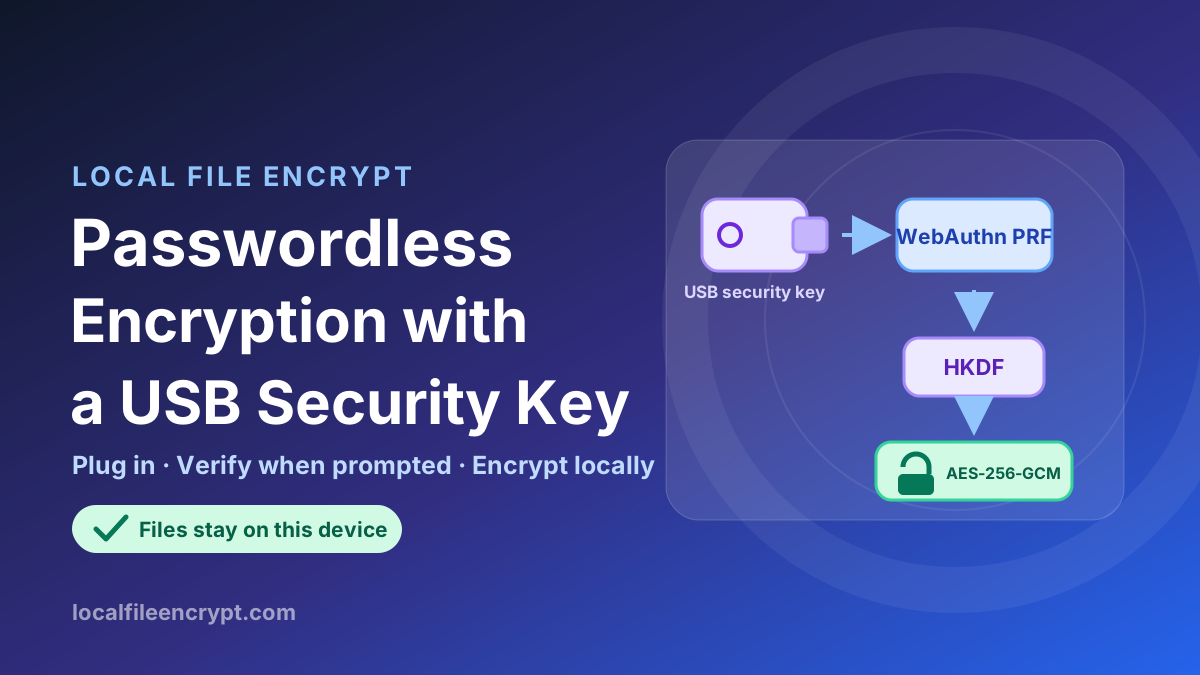
Passwords are familiar, but they also create work: invent a strong one, store it safely, type it correctly, and make sure it is still available years later. This article introduces another choice added to Local File Encrypt. With USB security-key encryption, you can protect a file without creating a file password. To decrypt it, you insert the same physical security key used during encryption and complete the verification requested by your browser or operating system.
That sounds as simple as “the device is the key,” and that is a useful first mental model. There is one crucial consequence, however: there is no backup unlock path. The encrypted file has no recovery key, hidden default password, cloud copy of its key, or second-device slot. If the app-specific credential on the original USB key is permanently lost or unusable, the file cannot be recovered.
Two Independent Ways to Protect a File
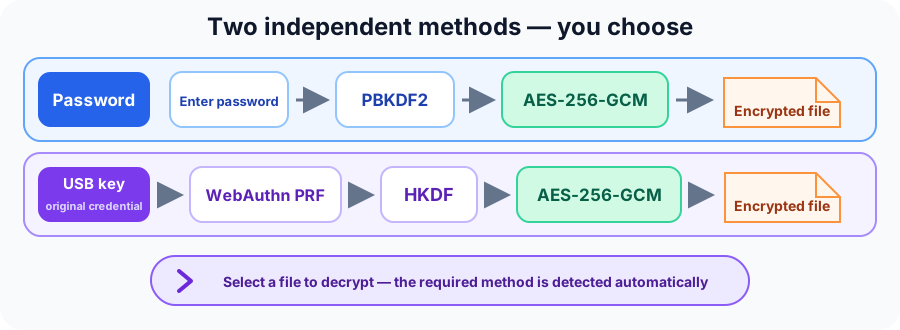
USB security-key encryption is an additional option. It does not replace or alter password encryption.
| Password | USB security key | |
|---|---|---|
| What unlocks the file? | The original file password | The original app credential on the original physical key |
| What do you type? | The file password | Usually a device PIN, followed by a touch or other system-requested verification |
| Is there a file password? | Yes | No |
| Can another security key substitute? | Any supported device with the file and password can try | No; the same key model, same PIN, or a newly configured credential is not a substitute |
| Best fit | Portability, sharing, or workflows where a remembered/stored secret is acceptable | Personal files where possession of one designated hardware key should be required |
You choose the method for each encryption operation. Existing password-encrypted files continue to use their original passwords. During decryption, the website and offline Python program inspect the file and select the correct path automatically.
If the USB option does not work with your hardware or environment, use the password method instead. The two paths remain independent.
What “Passwordless” Means Here
“Passwordless” means that there is no password attached to the encrypted file. A security key may still ask for its PIN, a fingerprint sensor on the key if present, or physical touch. That check authorizes an operation inside the authenticator. It is not saved in the encrypted file, and the website does not set, receive, or manage it; the browser or operating system presents the verification interface.
The USB key also does not hand its private key to the page, and its assertion signature is not used to encrypt your file. Instead, the feature uses the WebAuthn PRF extension. After successful user verification, a compatible authenticator can produce a deterministic, secret result for a particular input. “Deterministic” is important: the same credential and the same input reproduce the same result later, while a different credential does not.
FIDO2 or WebAuthn support alone does not guarantee this capability. The key, browser, and operating-system path must return a valid PRF result. The behavior is standardized in the W3C WebAuthn PRF extension, but products may expose different subsets of the standard.
Before You Start: Use a Non-Important Test File
Do not make an important document your first experiment. Begin with a disposable text file whose contents you already know, then test the complete round trip:
- Encrypt it on the website with the USB security-key option.
- Download the encrypted result and confirm that it exists on disk.
- Decrypt that downloaded file in the browser.
- Download the recovered result and compare it with the original.
- If Python is part of your recovery plan, decrypt the same encrypted file with Python too.
Repeat this test on every computer, security key, browser, and operating system you intend to depend on. One successful combination does not prove another will work. Do not assume every FIDO2 key supports the required PRF behavior.
Also decide whether the no-recovery model is genuinely appropriate. If you need to share access with another person, migrate between unrelated keys, or keep a recovery secret in a vault, the password method is likely the better fit.
First-Time Encryption: Why There Are Three Device Ceremonies
The first encryption in a browser has a longer setup flow. This is intentional: the app first creates its credential, then verifies twice that the credential can reproduce the required secret result reliably before it encrypts any data.
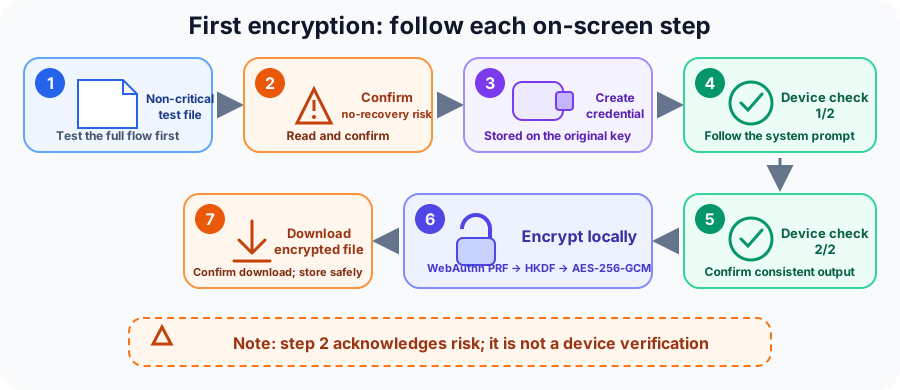
Step 1: Select the content and the method
Choose the text, file, or folder you want to protect. Under Choose an Encryption Method, select USB security key. Read the safety explanation and confirm that you understand there is no backup unlock path.
Changing the method should not discard the content you selected. The password input disappears because this path does not use a file password.
Step 2: Set up the security key
Choose Set up a security key and encrypt. The browser opens its WebAuthn interface and asks you to use an external security key. Insert the intended USB key and follow the system prompts.
This ceremony creates a site-scoped credential that only the original key can use. It is not determined by the device PIN. Two identical-looking keys create different credentials.
Step 3: Complete verification 1/2
After creation, choose Start verification 1/2 and use the key again. The app requests a PRF result for fresh random input belonging to this file and checks that it comes from the new credential.
Step 4: Complete verification 2/2
Choose Continue verification 2/2 and follow the prompt again. With a new one-time WebAuthn challenge but the same file input, encryption proceeds only if both valid responses produce the same result.
These are three separate WebAuthn ceremonies: one creation and two verifications. Cancellation, timeout, disconnection during a ceremony, or an incompatible response stops the flow without an encrypted result. The risk checkbox is acknowledgement, not device verification. Once verification has succeeded and local data processing has begun, the key does not need to remain connected for the browser to finish that operation.
Step 5: Let the browser encrypt locally, then download
Once setup is proven, the browser derives a file-specific encryption key and encrypts the content locally. This method requires browser-local temporary storage for every file size, and processes the data in authenticated chunks. The downloadable result appears only after the operation completes successfully.
Start the download, then confirm that the encrypted file reached disk. “Download initiated” cannot prove that your operating system finished writing it.
The page temporarily retains results so an active browser download is not deleted too early. After every browser download has finished, choose Downloads finished, clear storage to release space no longer in use. This does not affect files already saved to your device, and it is not a promise of forensic secure erasure.
Everyday Encryption and Decryption
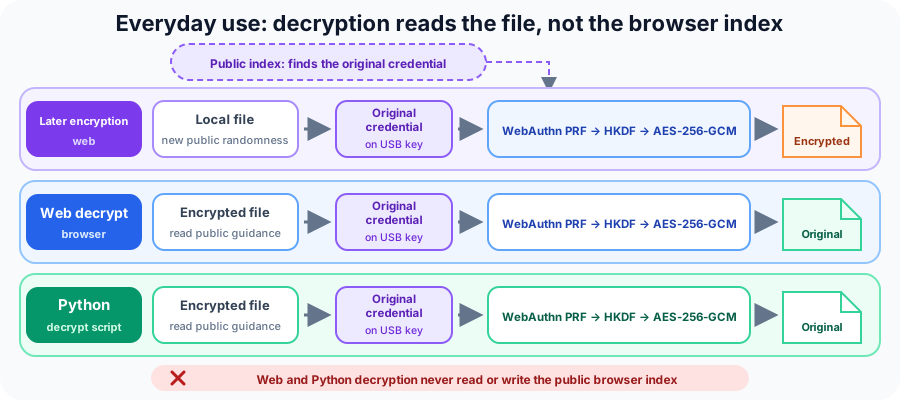
After the initial setup, normal operations are shorter. Each file still receives fresh cryptographic inputs, but the browser can ask the existing credential for the needed PRF result with a single device ceremony.
Encrypt another file in the same browser
Select the new content, choose USB security key, confirm the risk notice if needed, and choose Encrypt with the security key. Insert the same key and follow the system verification prompt. One successful assertion is normally enough for that file.
When site storage is available, the browser keeps a public index so later encryption knows which credential to request. If saving fails, reuse is limited to the current tab session. This encryption-only convenience contains no file key, PRF output, PIN, private key, password, or recovery material.
If you clear the site’s stored data or move to a new browser profile, that convenience record is no longer available. The current, unrefreshed tab may still reuse its in-memory session credential; after refreshing or reopening the page, the next encryption may create another credential through the three-ceremony setup. That new credential does not replace the old one. Previously encrypted files still point to their original credential and remain decryptable as long as it is still present on the original hardware key.
Decrypt in the browser
Open the decryption area and select the encrypted file. The page inspects it automatically. For a security-key-encrypted file, it does not ask for a password; instead, it asks you to insert the USB key used to create that file.
Choose Decrypt with the security key and complete the system prompt. The file itself carries the public information needed to request the correct credential, so decryption does not read, create, update, or replace the browser’s encryption index. After success, the page offers the recovered file for download. It does not save a “default key” or show a post-decryption browser-record action.
Clearing site data removes the encryption index, risk acknowledgement, and other retained site data, but not the credential on the USB key. An encrypted file already saved to disk remains decryptable with the original credential.
How the Same File Key Comes Back Without Being Stored
If encryption uses fresh randomness, how can decryption obtain the same key without saving it? The app saves the public recipe inputs, not the secret result.
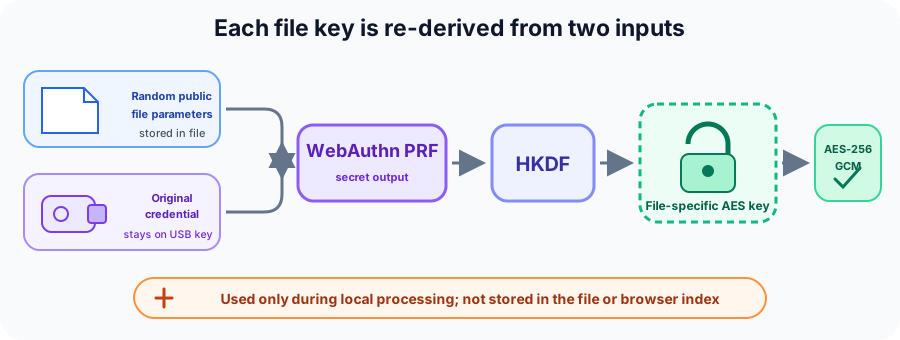
During encryption:
- The browser generates a fresh random PRF input and a fresh random HKDF salt for the file.
- After user verification, the original credential evaluates the PRF input and returns a secret result.
- HKDF-SHA256 combines that result with the file’s random salt and a fixed context label.
- The output becomes a file-specific key for AES-256-GCM.
- AES-256-GCM encrypts the content in independently authenticated chunks.
During decryption, the program does not generate replacement values and hope they match. It reads the original public input and salt, asks the original credential to evaluate that input again, and uses HKDF-SHA256 to reconstruct the same AES key.
Fresh randomness still matters. Different files receive different inputs and salts, so they derive different AES keys even when the same USB credential is used. The PRF output and derived file key are used only for local processing and are not intentionally persisted to the encrypted file or browser index.
AES-GCM provides confidentiality and authentication together. If protected data or authenticated metadata is altered, decryption fails instead of quietly returning modified plaintext. For more background on the project’s encryption model, see How Do We Encrypt Your Data?.
What the Encrypted File Contains—and What It Does Not
An encrypted file must carry enough public information for a future decryptor to repeat the correct recipe. Public does not mean unimportant: these values are authenticated, so tampering is detected.
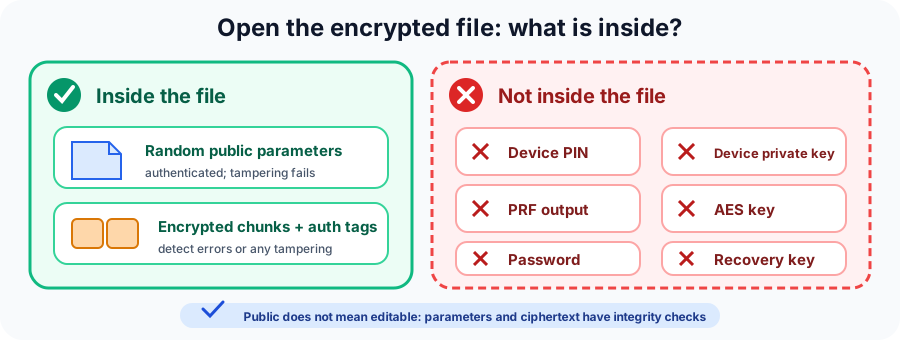
The encrypted file contains:
- a public identifier that tells WebAuthn which app credential must answer;
- the random PRF input and HKDF salt used for this file;
- random values needed to authenticate each encrypted chunk;
- the exact plaintext length (for a folder, the length of its packaged ZIP), whether the content is text, a file, or a folder, and the original extension when present—but not the original filename;
- the encrypted content and authentication tags.
It does not contain:
- a file password or default recovery password;
- the USB key’s PIN or biometric data;
- the authenticator’s private key;
- the PRF secret result;
- the derived AES key;
- a recovery key, cloud key copy, or backup-device slot.
The browser’s public encryption index is even smaller: it is only enough to request the previously selected credential for future encryption. Copying that index to another browser does not copy the credential and cannot unlock a file.
If several encrypted files reuse the same app credential, they also carry the same public credential identifier. Someone who holds those files can therefore tell that they refer to one credential, although that does not provide a way to decrypt them. Treat this linkability, exact plaintext length, content type, and optional extension as exposed metadata; the original filename is not stored.
The No-Recovery Rule
The strongest operational fact is also the easiest one to misunderstand: the security boundary is the specific app credential on the original physical device, not the model name, PIN, or appearance of the key.
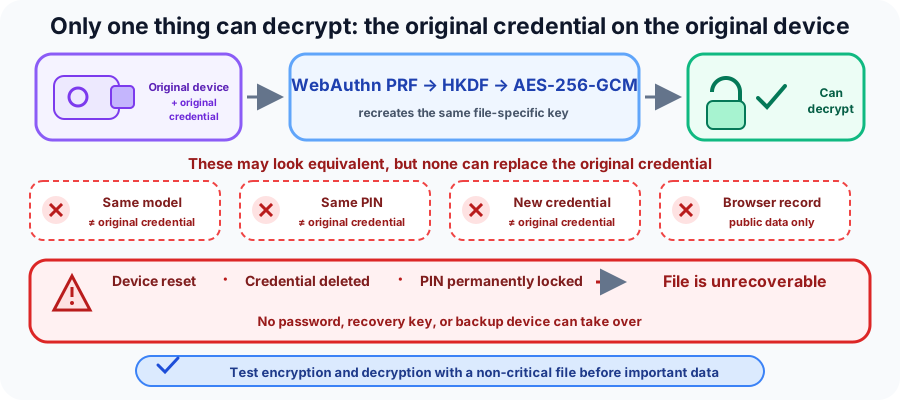
None of the following replaces it:
- another USB key of the same brand and model;
- another key configured with the same PIN;
- a newly created credential on the original key;
- a browser’s copied or recreated public index;
- knowledge of every public value stored in the encrypted file.
Resetting the security key, deleting this app’s credential from it, or permanently locking its PIN can make old files unrecoverable. Physical loss, permanent device failure, or loss of access to the required user-verification method has the same practical result. Keeping extra copies of the encrypted file protects against storage loss, but it does not create another way to derive the file key.
There is deliberately no automatic recovery password. There is also no workflow for enrolling a second hardware key into the same encrypted file. If you need either property, choose password encryption and manage that password according to your own backup policy.
For a broader explanation of hardware authenticators, WebAuthn, and how credentials are bound to a site, read What Is a Hardware Security Key?.
Local Processing and the Remaining Security Boundaries
File content, passwords, PRF results, and derived keys are not sent to an application server. Processing happens in the browser and its worker; this USB security-key path uses browser-local temporary storage for every file size. Python also processes the file locally.
“Local” does not make the surrounding computer harmless. Malware, a compromised browser or extension, screen capture, or access to recovered plaintext may still defeat your goals. Use a trusted, updated system and the official site. WebAuthn credentials are bound to a relying-party identity, so a copied page on an unrelated domain is not equivalent.
Temporary encrypted data or plaintext may exist locally while an operation runs or a download is retained. Cleanup is not a guarantee of forensic secure erasure. Verify the download destination and remove unneeded plaintext according to your threat model.
Avoid absolute compatibility assumptions. The PRF result must travel successfully through the USB FIDO2 key, browser, operating system, and WebAuthn implementation. Do not assume built-in Touch ID, Windows Hello, phone QR flows, NFC keys, or cloud-synced passkeys work merely because they also use WebAuthn.
Offline Decryption with Python
The project provides a Python decryption program for situations where you prefer a local command-line workflow. It inspects the encrypted file automatically. You do not need to pass a method option, and you should not pass a password for a USB-security-key-encrypted file:
python3 decrypt.py encrypted-with-security-key.lfe
The USB security-key path requires Python 3.10 or newer (but below Python 4), plus the pinned cryptography and fido2 packages documented by the project. On macOS and Linux, the device path reads the PIN without echoing it in an interactive terminal; Windows uses the operating system’s security-key interface. Use the original physical key and follow the prompt before its deadline. It publishes the recovered output only after all chunks authenticate, and it does not overwrite an existing destination file. Test Windows and Linux separately on the actual environment you plan to use; evidence from another operating system does not establish support there.
Password-encrypted files remain an independent path and still take their original password:
python3 decrypt.py encrypted-with-password.lfe "original password"
Test Python recovery before relying on it. USB discovery, permission handling, system dialogs, and authenticator support can differ across operating systems. A successful browser test is not automatically a successful Python test.
Troubleshooting Without Guessing
Most failures fall into a few understandable groups:
- The environment is unavailable. The page may not be in a secure context, WebAuthn may be unavailable, or browser-local temporary storage may be blocked. Try a current browser in a normal window before changing hardware.
- The required PRF result is missing. The key or the platform path may not support the extension needed for file-key derivation. FIDO2 branding alone is not sufficient evidence.
- The prompt was cancelled or timed out. Start again, insert the key before the deadline, and complete the PIN, fingerprint, or touch requested by the system. The app does not silently retry a failed security-key operation.
- The wrong credential answered—or none did. Confirm that this is the exact physical key and app credential used for the file. A matching PIN or model does not help.
- Authentication failed. The file may not match the credential, or authenticated bytes may have changed. The app fails closed and does not fall back to password or another decryption method.
- The result did not appear on disk. Check the browser’s downloads. “Download initiated” only means the app handed the result to the browser.
Do not “fix” a failure by resetting the hardware key. A reset deletes credentials and can permanently destroy access to files that depend on them.
A Practical Safety Checklist
Before encrypting important data:
- Use a non-important file to test browser encryption and browser decryption end to end.
- Test the exact physical USB key, computer, browser, and operating system you plan to use.
- Test Python separately if it is part of your recovery plan.
- Confirm that downloads really reach disk and that recovered bytes match the original.
- Understand that no password, recovery key, cloud key copy, or backup-key slot exists.
- Keep the original USB key secure, and do not reset it or delete the app credential.
- Do not mistake the browser’s public encryption index for a key backup.
- Keep appropriate backups of the encrypted file while remembering that copies do not solve credential loss.
- Choose password encryption instead if you need portability, sharing, or a recoverable secret.
USB security-key encryption trades memorized secrets for a strong possession requirement. Used deliberately, it makes the workflow pleasantly concrete: choose a file, use the designated hardware key, verify locally, and download the result. But the convenience comes from eliminating recovery material—not hiding it somewhere else. Test first, protect the original credential, and choose the password path whenever that no-recovery trade-off does not fit your needs.